Manage licenses
Here’s some information about theme license and purchase code you need to know.
- One purchase code can be used for 1 WordPress installation. But what counts as 1 installation
- If your site is multisite, It’s still ok. You need only 1 purchase code/license because It’s 1 installation.
- If you have 1 domain, but you installed theme 2 times, for instance in
yourdomain.comandyourdomain.com/sub-directory/, you’ll need 2 licensed. In other words, you’ll need to purchase the theme twice. - The license doesn’t count if you have localhost installation or stagging site installation. However, we can only check localhost because It’s clear that this is a developing site. So if you use the license key for your stagging site, then you might need to unregister it later when your main site goes live.
- One license is being used for 1 site at one moment. You can change the domain and bring that license to use in the new domain. As long as at any time, number of your licenses = number of your currently active site.
- You will need to register your license key to import demo content.
Register/Unregister license
To register/unregister license, please go to Dashboard > Fox Magazine. You also revoke/unregister your license there. The reason for unregistration is often when you want to use that license for different website (eg. you change domain or you move from stagging site to the live site).
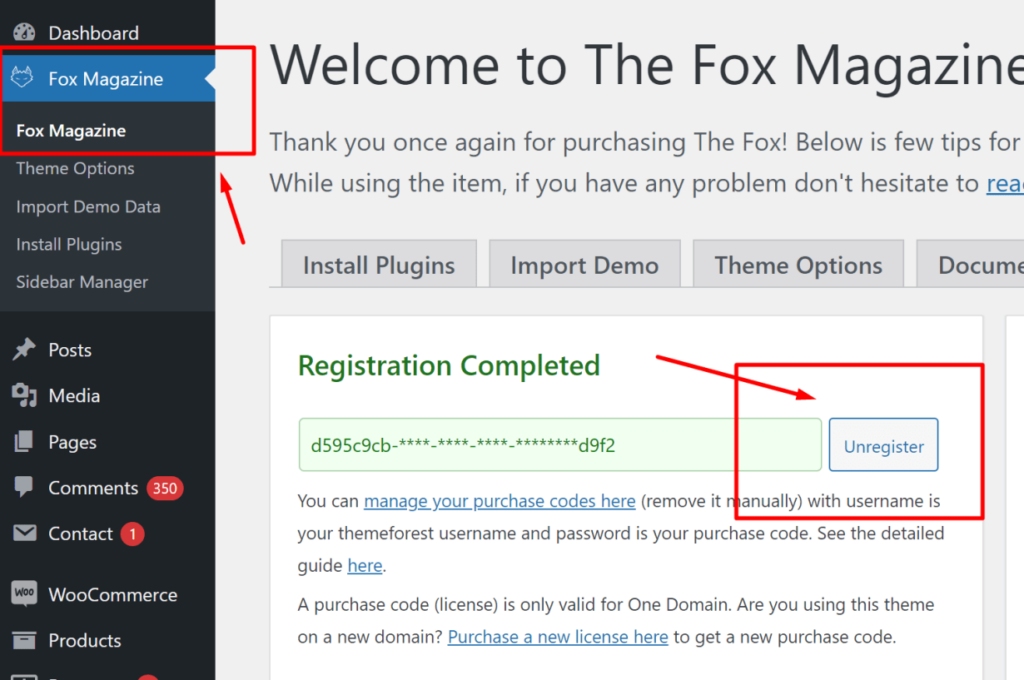
Unregister license remotely
Sometimes you can’t access to your website you used that purchase code (for instance, you deleted it or you can’t access it for some reason, or you reinstalled it but forgot to revoke license) but you still want to revoke the purchase code to use for another site, then here’s the step-by-step guide.
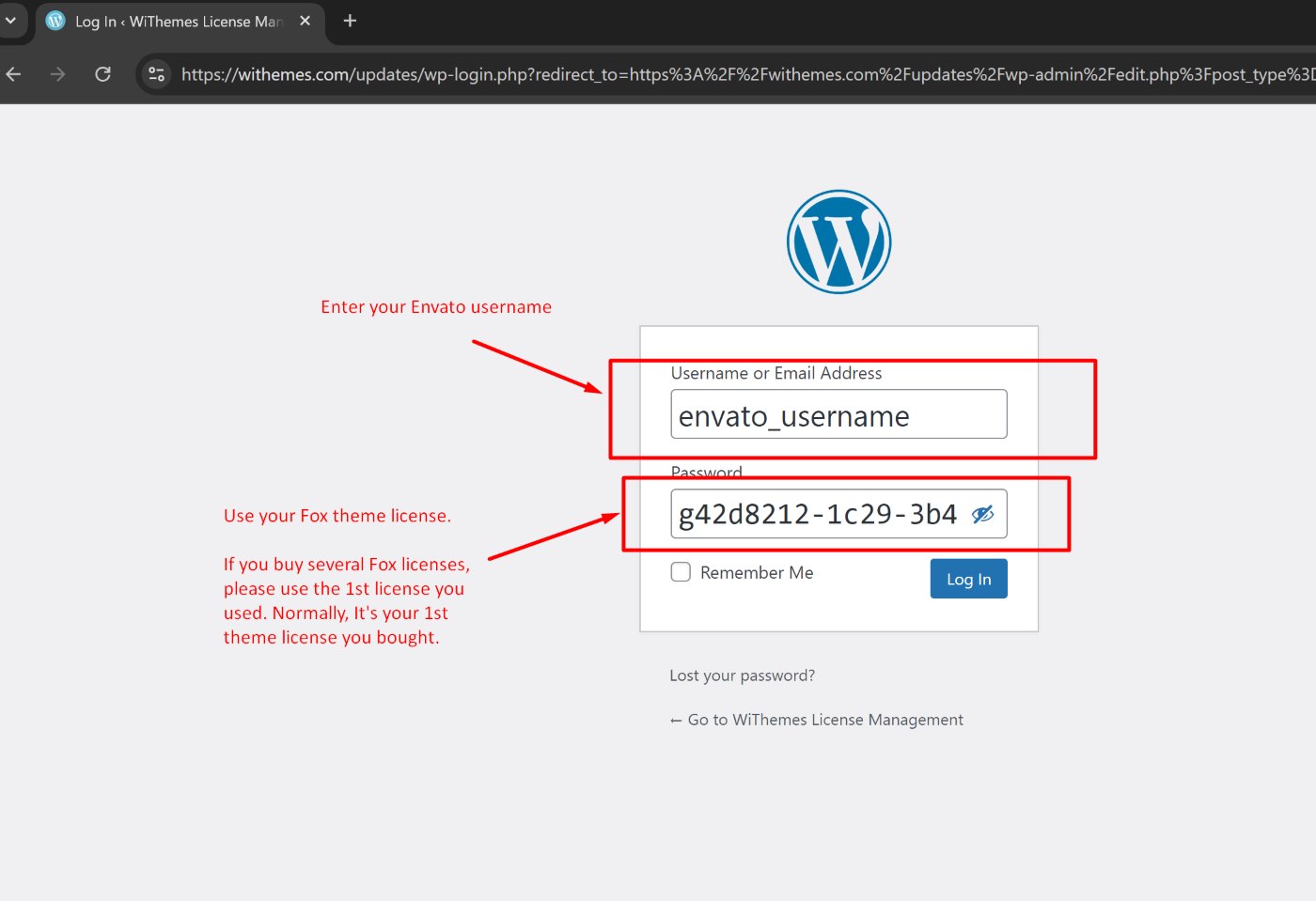
Step 1: Visit the license manager website.
Step 2: Login with username is your ThemeForest username and password is your purchase code. If you even forget your purchase code, please go to your download page to download the purchase code.
Step 3: Go to Dashboard > Purchase Codes. You’ll find your purchase code and your site info there.
Step 4: Click Trash to delete it
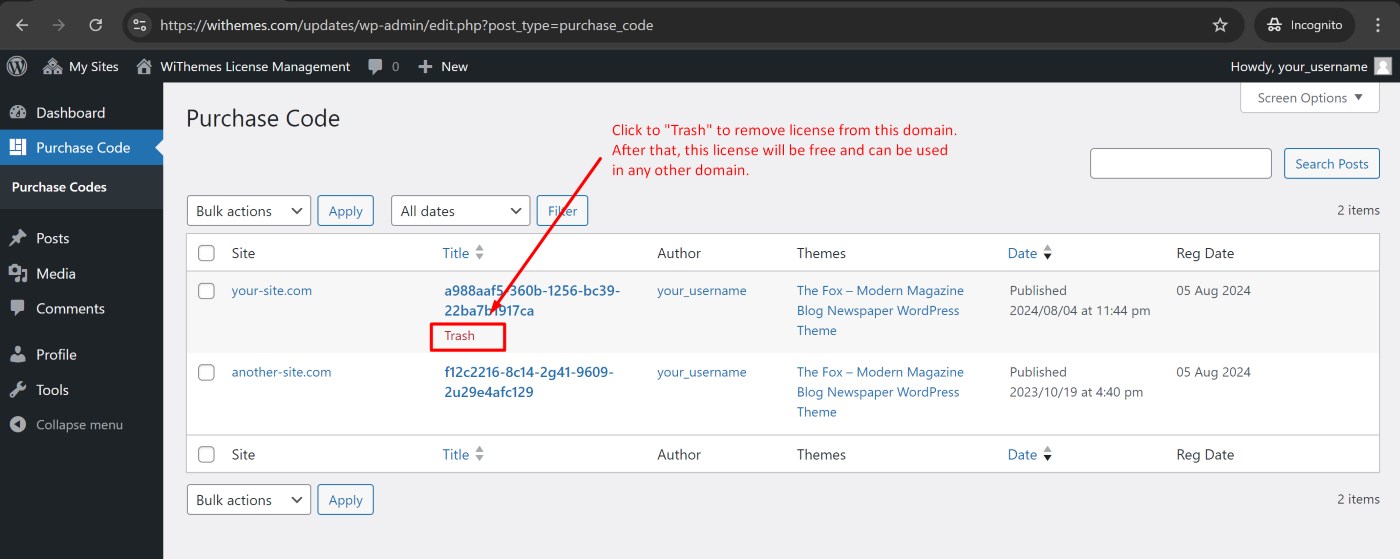
Step 5: Now, your purchase code has been revoked manually and you’ll be able to use that purchase code for any other site you want to
Note:
- If you changed your Themeforest username, please use the username at the moment you registered the theme license.
- Using email doesn’t help.
- If you have purchased few theme licenses, please use the first license.
Still not working?
Please open a support ticket here, or comment on Themeforest, we will help you to revoke/remove the license manually. Note: Our support ticket is private and your information is safe, but Themeforest comments are public. DO NOT PROVIDE license code on Themeforest comments.