Child theme
What is a child theme? Briefly, a child theme is a WordPress theme. Read more about it here >>.
Not everyone needs a child theme. So please consider if you need a child theme, or you’ll make your site unnecessarily complicated.
Why someone needs a child theme? Because in each theme update, all theme files will be replaced by theme files of the updated version. Say your theme is in version 3.0. If you update to version 3.1, all theme files of your theme version 3.0 will be replaced by theme files of the version 3.1 (regardless they’re identical or not). So if someone has some PHP, JS, CSS, HTML.. customizations, they might want to keep it in a child theme instead of direct modification in the main theme.
Do I need a child theme?
We recommend you not to use a child theme, unless you know what are you doing.
If you want to to add some CSS pieces, some simple Javascript snippets (Analytics code for instance) or few PHP snippets, we highly recommend you to use a plugin. Here’s some recommendations:
- Code Snippets: This plugin allows you to add PHP, CSS, JS, HTML. They even have some predefined code presets you just need to choose from.
- Simple Custom CSS & JS: This plugin allows you to add CSS, JS.
With those plugins, you can edit CSS, JS, PHP.. from your WordPress backend. Your code won’t be lost even if you switch theme. Even I a WordPress developer myself, enjoy to use those plugins rather than developing a child theme.
But of course, It’s all up to you. If you have a big project and you want to put everything all together, you might consider using a child theme.
If you don’t know/don’t want to code, you don’t need a child theme and shouldn’t create/install a child theme.
Why my data is lost after installing a child theme?
Your data including posts, pages, photos.. are not lost after installing child theme. Only your settings (color, font, homepage sections..) are gone after installing a child theme. Here’s why.
Your settings are stored per theme, not per site. Your theme fox and fox-child-theme are 2 different themes so the system won’t carry fox theme settings to your fox-child settings. So one step of settings up child theme, is to migrate fox settings to fox-child settings. Please follow guides below.
Set up child theme
If you’re using multi-site, please skip this section and see the below section for multi-site.
Step 1: Install & Activate Customizer Export/Import plugin
Step 2: Go to Dashboard > Appearance > Customize > Export/Import
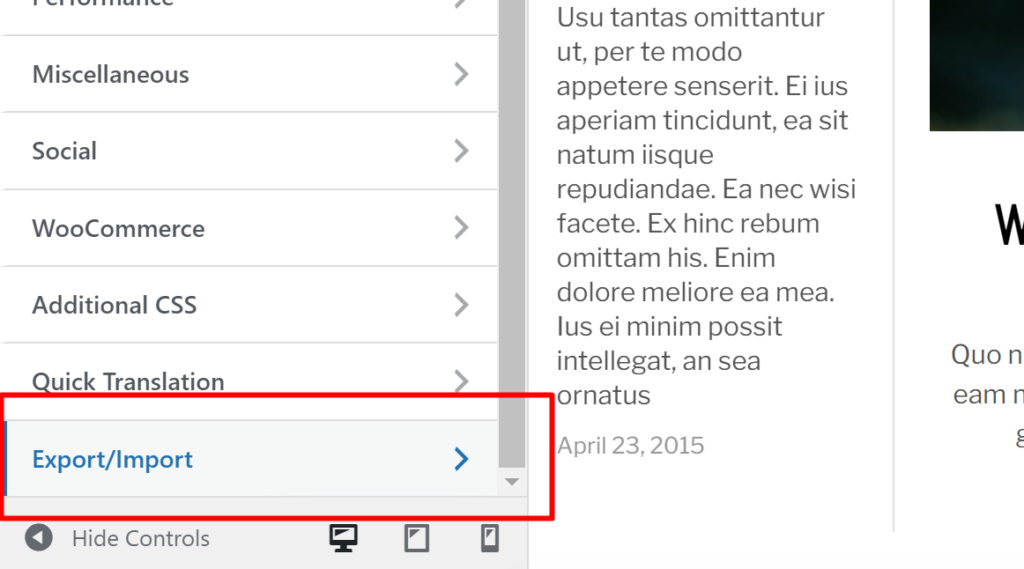
Step 3: Click “Export” button, you’ll get a file fox-export.dat
Step 4: Downoad sample Fox Child Theme.
Step 5: Install the child theme in Appearance > Themes > Add New as usual, and activate it. At this step, you’ll see all of your settings, content are gone. Your site looks terrible. Don’t worry. We’ll revert all in next stesp.
Step 6: Go to Dashboard > Appearance > Customize > Export/Import again
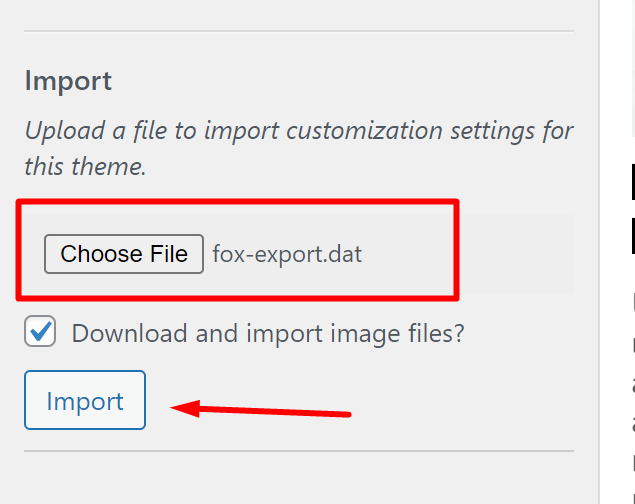
Step 7: Upload file fox-export.dat file then hit “Import” button and wait. After that, all your settings will be restored.
Set up child theme for Multisite
The above process applies to Multisite (Network) too. However, you must apply 7 steps to each site. So here we recap those steps in a better folow for multi-site.
Note: Do not activate your child theme until step 6 below.
Assume your multisite has 2 sites My Blog 1 and My Blog 2. Here’s the steps to set up child theme for My Blog 1:
Step 1: Go to Dashboard > My Sites > Themes > Add New to install the child theme. The sample child theme here, choose “Network Enable”
Step 2: Install Customizer Export/Import plugin
Step 3: Go to My Blog 1 > Plugins to activate the plugin Customizer Export/Import. If you have activate it for all network, you can skip this step
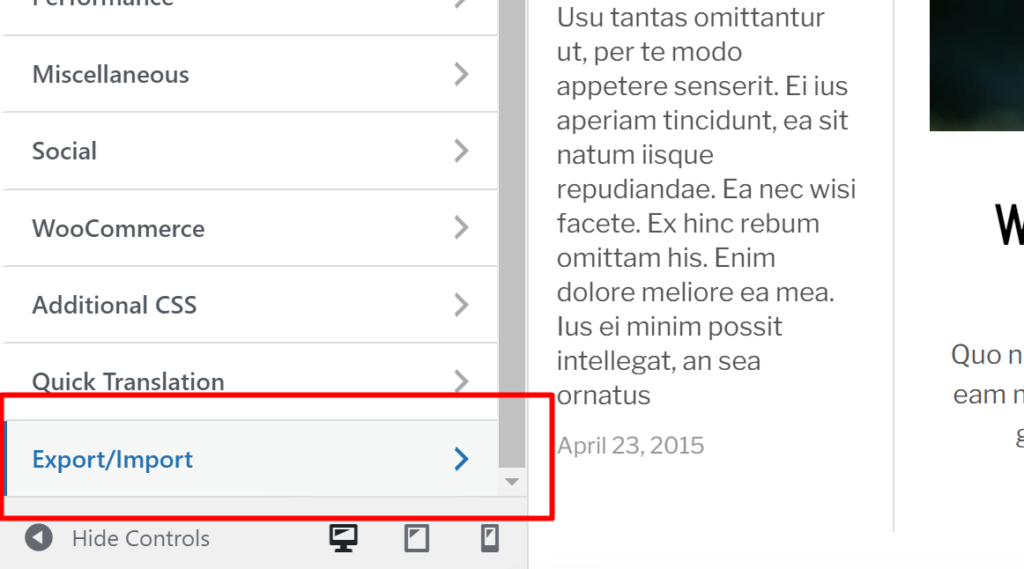
Step 4: Go to My Blog 1 > Dashboard > Appearance > Customize > Export/Import
Step 5: Click “Export” button, you’ll get a file fox-export.dat.
Step 6: Activate the child theme in My Blog 1 > Appearance > Themes.
Step 7: Go to My Blog 1 > Dashboard > Appearance > Customize > Export/Import again
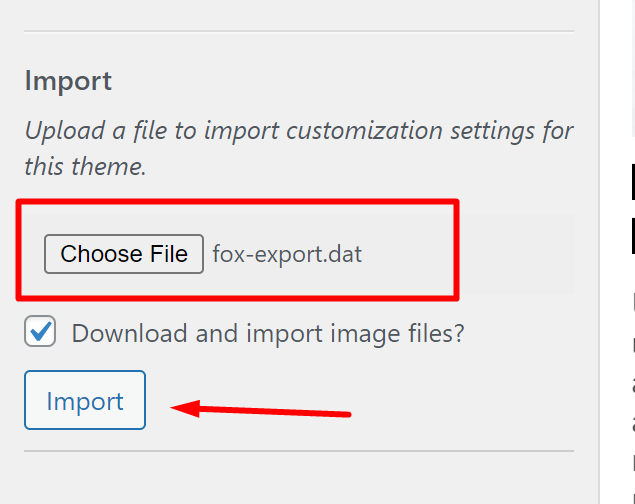
Step 8: Upload file fox-export.dat file then hit “Import” button and wait. After that, all your settings will be restored.
To set up child theme for My Blog 2, please repeat all above 8 steps. Of course, you skip step 1 because you already did it.