Setup Pages
This section covers how to set up the main page types in Simple & Elegant: homepage, about/contact, blog, portfolio and shop, plus your social profiles.
Setup the homepage
Step 1: Create a page (e.g. “Sample Page”) and fill it with content using Visual Composer. If you’re not familiar with Visual Composer, go back to the Quick Setup step to import the demo data, then edit it.
Step 2: Scroll down below the editor to the Page Settings area and check all the options you need (sidebar position, page padding, hide page title, etc.).
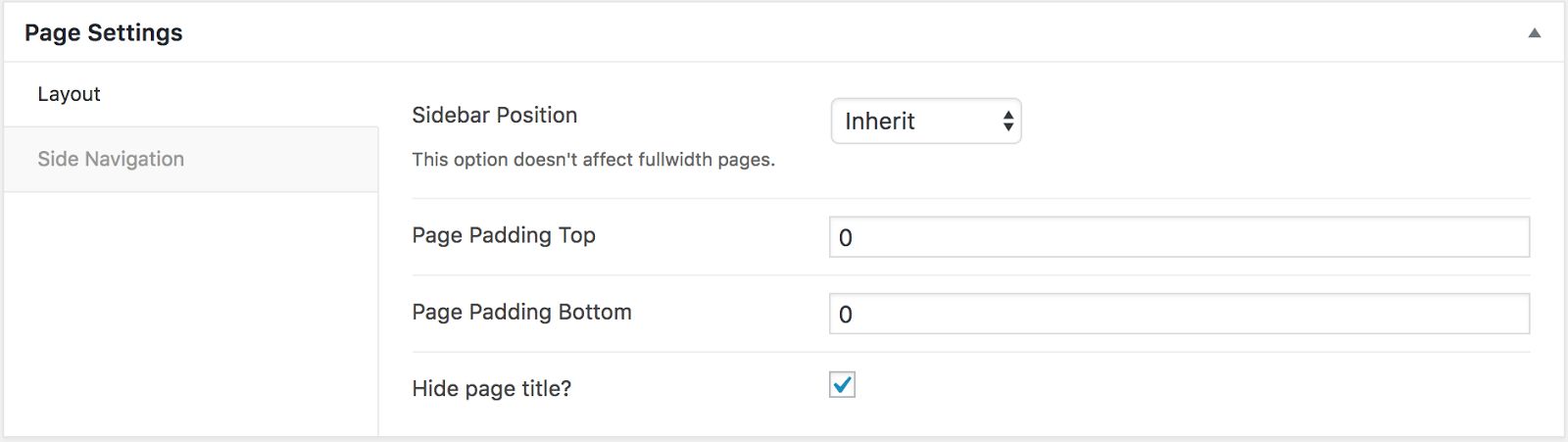
Step 3: Go to Dashboard > Settings > Reading and set the page you created as the front page. All done! Simple & Elegant comes with various homepage demos that you can choose from when importing the demo data.
Setup About / Contact pages
Just create a new page named About, Contact, etc. and fill it with content using Visual Composer. You can also import the demo data to use the About/Contact templates that ship with the theme.
Setup the blog page
Step 1: Create a new page (e.g. Blog, Journal, News). After creating it, scroll down below the editor to set up some options for that page (padding, title visibility, etc.).
Step 2: Go to Dashboard > Settings > Reading and set that page as your posts (blog) page. Here you can also control how many posts appear on your blog.
Step 3: Go to Dashboard > Appearance > Customize > Blog to set up the layout and style for your blog. You can choose one of the following layouts:
- Standard Posts
- Grid Layout
- List Layout
Note that these options can be set separately for the main blog and the archive pages.
Setup the portfolio page
Step 1: Create a new page (e.g. My Portfolio, Works). After creating it, scroll down below the editor to set up some options for that page (padding, title visibility, etc.).
Step 2: Add the Portfolio element to your page using Visual Composer.
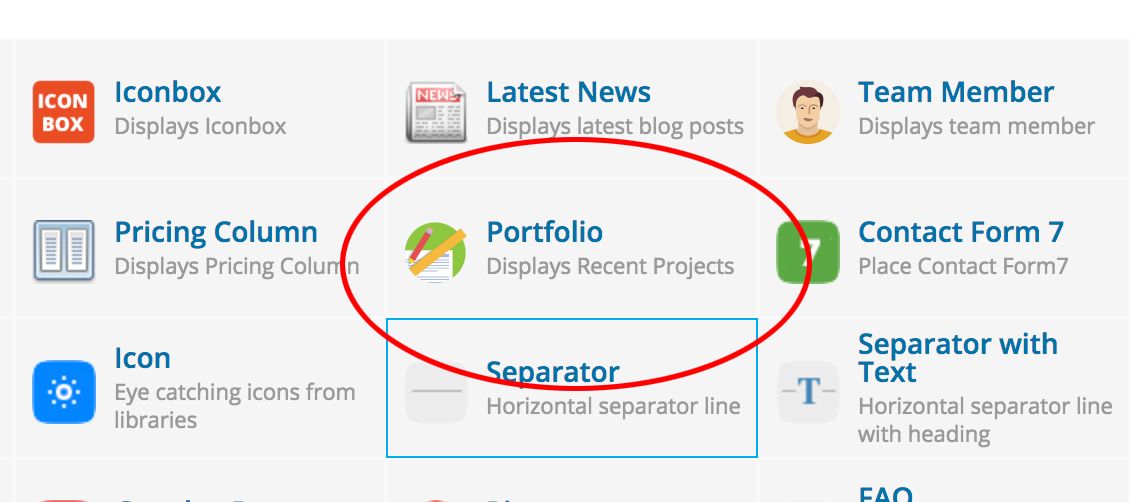
Step 3: Go to Dashboard > Portfolio > Add Projects to create new projects. These projects will appear on your Portfolio page.
Setup the shop page
Step 1: Make sure you have installed the WooCommerce plugin. If you haven’t yet, download and install it.
Step 2: Follow the WooCommerce documentation to set up your shop pages.
Step 3: Go to Customize > WooCommerce to customize the look of your shop.
Setup social profiles
Go to Dashboard > Customize > Social to set up your Facebook, Twitter, Pinterest and other URLs. With Simple & Elegant, you can display your social profiles in two positions:
- Topbar: go to Customize > Header to enable or disable it.
- Footer bottom: go to Customize > Footer to enable or disable it.